
WOOCOMMERCE SPEED OPTIMIZATION WITH HOSTINGER LITESPEED CACHE (FULL GUIDE)
Category: Web Development & E-commerce | Reading time: ~9 minutes | Level: All web users
WooCommerce speed optimization is no longer optional — it’s the foundation of scaling online revenue and acquiring constant organic traffic. Modern e‑commerce success depends on a technical infrastructure built for speed, where every second of delay can cost conversions. As search engine algorithms evolve to prioritize user experience and Core Web Vitals, digital storefronts must handle dynamic systems like instant shopping carts, coupon codes, and real‑time payment gateways without slowing down.
A sluggish checkout process doesn’t just frustrate customers — it damages brand reputation, lowers conversion rates, and triggers Google penalties that suppress your visibility in search results. This guide shows and explains how to use HOSTINGER LiteSpeed Cache to eliminate bottlenecks, secure faster load times, and build a performance‑driven WooCommerce store that ranks higher and sells more.
While modern web technologies provide friction-free access to your checkout funnel, they simultaneously open up major performance bottlenecks for high-traffic websites. WordPress speed optimization goes far beyond standard image compression and simple caching tools. It involves advanced object memory management, server-level database rules, and automated resource tuning — technical necessities that apply even to online store owners who consider their current setups fully optimized.
The hard truth is this: most slow storefronts are not built by careless developers. They are run by ordinary business owners who simply do not realize how resource-heavy database calls drag down server execution times until their rankings begin to drop. This comprehensive technical tutorial will address this. By the end of this guide, you will understand exactly how critical performance enhancements operate, what your configuration settings should look like, and — most importantly — the specific, actionable steps you can take right now to eliminate your loading lag on Hostinger.
KEY FOCUS POINTS:
- THE DATABASE CHOKE POINT: How dynamic shopping pipelines quietly harvest server resources to create loading bottlenecks.
- OBJECT CACHING PIPELINES: Why how your hosting environment behaves matters as much as the plugins you use.
- LITESPEED OPTIMIZATION RULES: The core caching configuration that protects sensitive checkout data while boosting speed.
- TRANSIENT STORAGE CLEANUPS: The final line of database defense that is entirely in your control.
1. THE DATABASE CHOKE POINT: UNDERSTANDING THE CHECKOUT DISCONNECT
EVERY E-COMMERCE PLATFORM HANDLES a complex mix of static information and dynamic user actions. Standard elements like homepage banners, contact layout areas, and generic styling code do not change between unique visitors and can be served almost instantly. However, transactions require real-time system interactions. If you haven’t built your digital framework yet, follow our complete blueprint on how to build a WordPress WooCommerce business website using the HOSTINGER Business Plan first to establish a reliable, high-performance technical baseline.
When a client selects an item variant, edits a shopping cart quantity, or applies a coupon code, the website bypasses basic file caching. Instead, it runs heavy PHP tasks directly against your database tables. Without specialized optimization pathways, a sudden influx of shoppers will rapidly spike your server’s central processor usage, forcing checkouts to stall and causing frustrated customers to drop out of your funnel.
2. OBJECT CACHING PIPELINES: ENABLING HOSTINGER OBJECT CACHE VIA HPANEL
THE QUICKEST METHOD TO RESOLVE high loading delays involves preventing repetitive, identical calculations on your storage drives. Hostinger mitigates this processing issue by embedding enterprise-tier Object Cache (powered by Memcached) straight into its native hPanel management platform.
Step-by-step setup:
Step 1: Locate the Management Hub
Log into your standard Hostinger account, select Websites from the primary menu, and click Manage adjacent to your active storefront domain.
Step 2: Access the Core Integration
Using the clear left-hand options panel, click into the WordPress tab and select the Overview dashboard.
Step 3: Initialize Server Memory Caching
Scroll downward until you pinpoint the Object Cache function. Toggle the selection switch to Active. This commands your server infrastructure to keep previously processed queries resting in rapid system RAM, granting subsequent visitors instantaneous loading responses without stressing the database.
3. LITESPEED OPTIMIZATION RULES: CONFIGURING SAFE E-COMMERCE CONTROLS
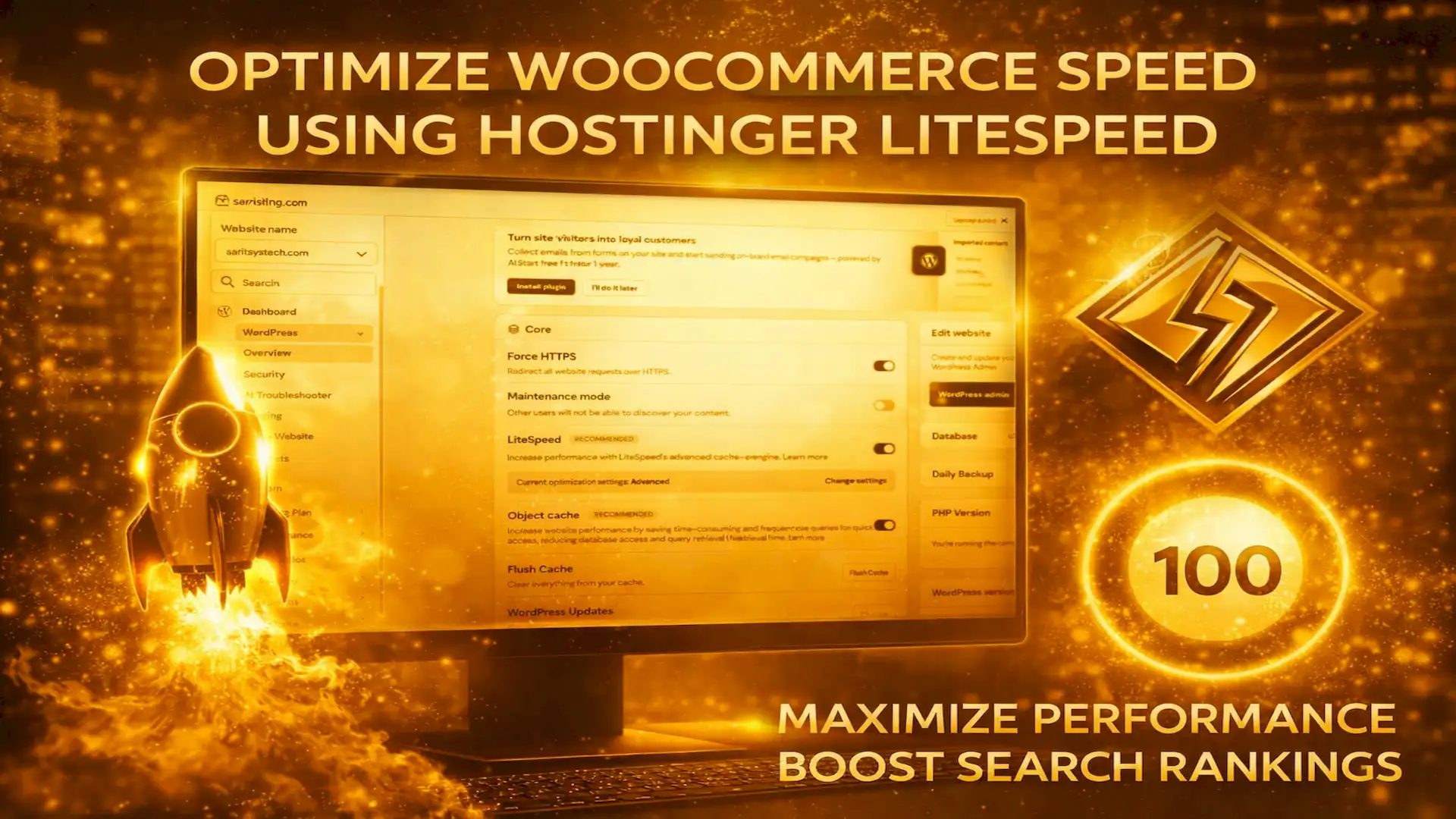
BECAUSE YOUR SITE SITS ON LiteSpeed Enterprise Servers, downloading the companion LiteSpeed Cache for WordPress (LSCWP) plugin unlocks powerful performance benefits. However, e-commerce stores demand rigid boundaries; setting global caching rules carelessly will cause dynamic checkout states to glitch or accidentally display one customer’s private cart details to another.
Open your administrator backend, navigate to LiteSpeed Cache ➔ Cache, and click into the E-commerce options. Turn Cache WooCommerce to ON to ensure the primary background logic shields sensitive transactional environments.
Enforce Strict URL Exclusions
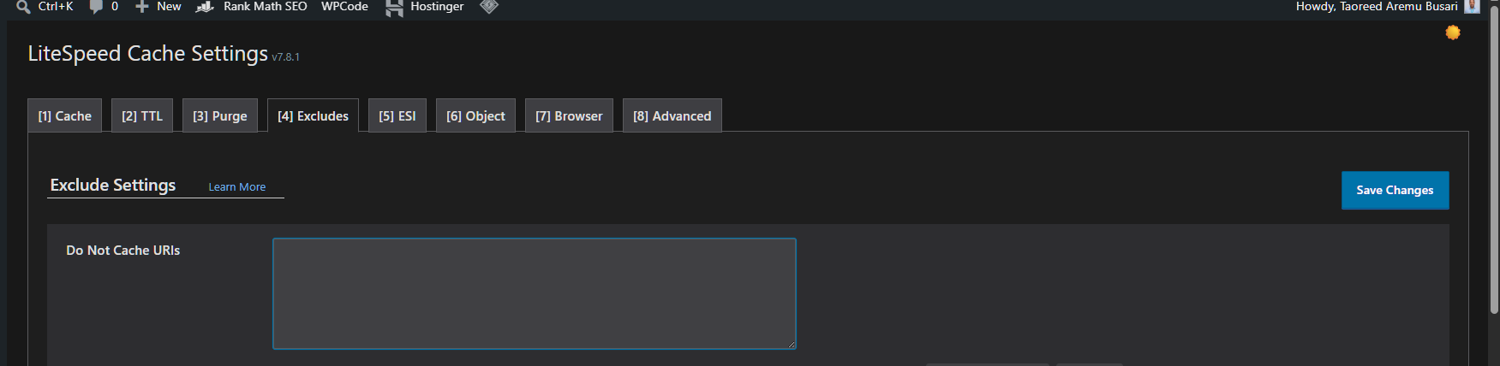
To keep your store fully secure, navigate to the Exclude sub-tab. Verify that your core operational transaction links are explicitly entered into the Do Not Cache URLs field block:
- /cart/
- /checkout/
- /my-account/
See the images below:
Minimize Frontend Presentation Assets
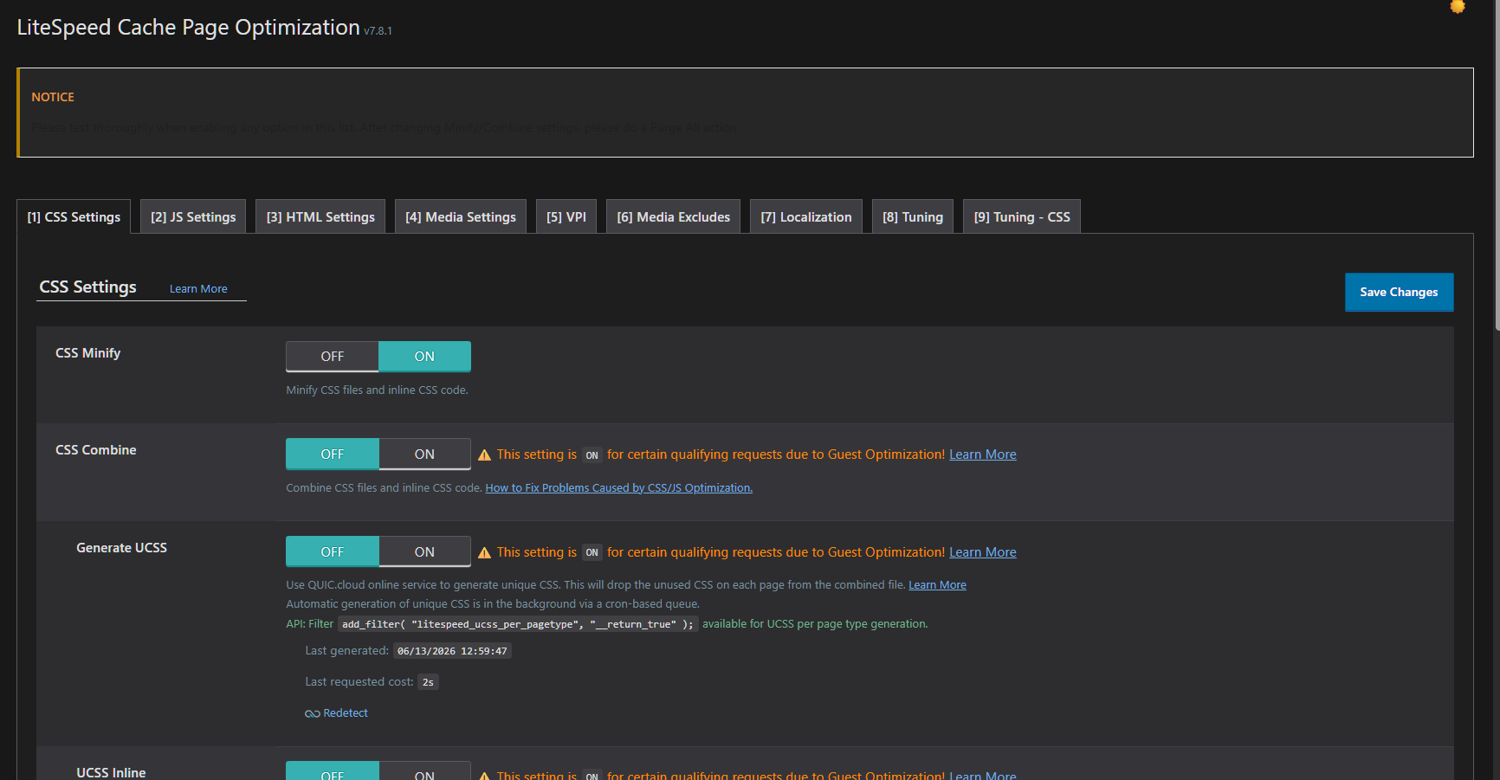
Switch over to the Page Optimization window. Turn on CSS Minify, JS Minify, and toggle Font Display Optimization to Swap. This strips away redundant line spaces and text notes from your rendering files, making your front-end architecture lean, professional, and friendly toward automated Google AdSense verification crawlers.
4. TRANSIENT STORAGE CLEANUPS: SAFE DATABASE SYSTEM MAINTENANCE
AS AN E-COMMERCE PLATFORM CONDUCTS daily business, it generates short-term data structures called transients. These track temporary details like temporary shipping estimations, active cart expirations, and discount usages. Over months of activity, thousands of dead records remain behind, adding heavy weight to your storage drives and slowing down query execution. To purge this system clutter securely, do these:
- Open your WordPress Dashboard.
- Select WooCommerce from the side menu and click Status.
- Choose the Tools interface option aligned across the top header.
- Locate Clear WooCommerce transients and click the clear activation button.
- Locate Clear expired transients right below it and run the tool.
Completing this automated routine once every month keeps your background storage scripts clean, secure, and ready to convert traffic smoothly.
DRIVING SALES THROUGH TECH-DRIVEN PERFORMANCE
By implementing this HOSTINGER and LiteSpeed cache blueprint, you establish a lean, lightning-fast foundation optimized for both search engine bots and everyday human users. Eliminating server response delays removes checkout friction, resulting in lower bounce rates, higher average order values, and an immediate lift in your organic search visibility.
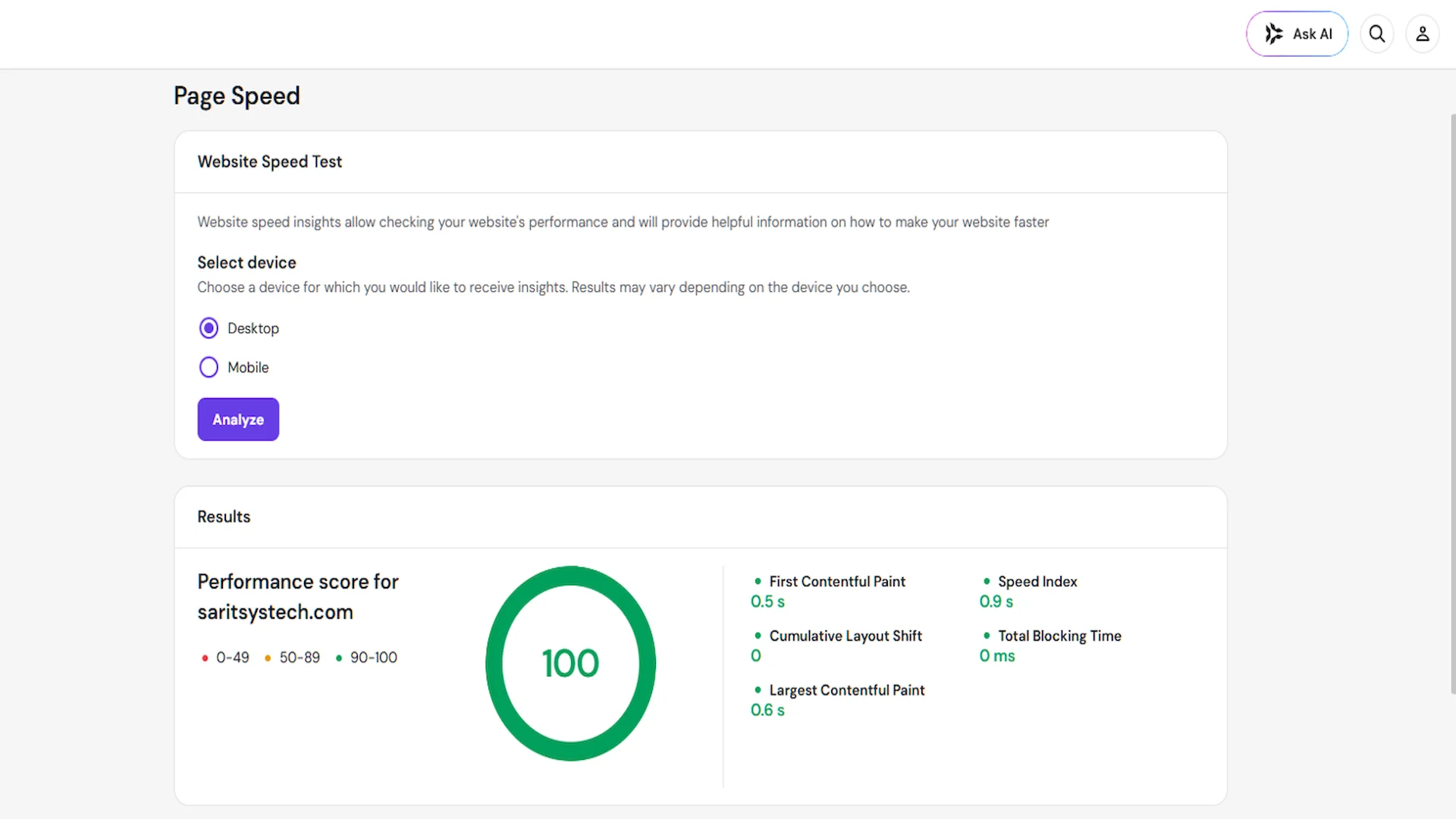
Furthermore, this clean, high-utility infrastructure perfectly satisfies Google AdSense layout and quality standards, turning your site into a premium destination for high-paying ad placements. Keep monitoring your progress through PageSpeed Insights, and execute your database maintenance monthly to preserve your competitive edge.
Thank you for exploring this complete guide on WooCommerce speed optimization using Hostinger LiteSpeed Cache. By implementing these targeted caching rules, routine database cleanups, and frontend optimizations, you’ve established a faster, more secure, and search-friendly e-commerce storefront. If this performance walkthrough helped speed up your online store, please share it with fellow store owners looking to eliminate loading lag. Be sure to bookmark Saritsystech and check back regularly for more enterprise-level WordPress tutorials, website performance strategies, and digital infrastructure insights. Your ongoing support empowers us to continue delivering actionable, technical solutions that drive measurable business results.
The post is timely. I will use the info [ LITESPEED OPTIMIZATION RULES: CONFIGURING SAFE E-COMMERCE CONTROLS] i got for my store today. Thanks!
Thanks and well noted.
Thanks for the informational post. By the way, Hostinger prices and strict policy are on high side, do you partner with them to write this post?
THANKS! However, I need to mention that I write about LITESPEED because of its clear performance benefits and not necessarily because of any other factors. While Hostinger’s pricing and policies are an important consideration, they are a great company, and I have had an excellent experience with them regarding speed.
It will be better if this tutorial is based and covered on major Web hosting companies and not just Hostinger because i use another hosting company, BLUEHOST
That is noted.
Thanks for the valuable info. What does it take for you to make a guest post on my platform? I messaged you via the WhatsApp too.
Thanks for the contribution. I reply via your WhatsApp
Yes TRANSIENT you mentioned is one of the key metrics to use to speed up the website. Nice one!
Thanks for this amazing info. I came across your site by Google search. I just opened my ecommerce site. I wish to test run the payment gateway. As a newbie, i am finding solutions. Can you tell me how to test run my site with a few dollar just to be sure the payment gateway is working. I use stripe and PayPal. Thanks in advance!
Hi Joseph, thanks for reaching out! I completely understand the need for a safe way to test your checkout process as a new store owner. I am currently putting together a detailed, step-by-step guide on the ‘hidden test product’ method I used to successfully verify my own payment gateway when I started, too. I have just published a blog post in response to your request. I hope you find it helpful! Check it out:
https://saritsystech.com/woocommerce-checkout-testing-without-risk
Brilliant ideas here!