
HOW TO EXTEND SMARTPHONE BATTERY LIFE: THE COMPLETE GUIDE
Category: Smartphone Tweaks | Reading time: – 7 minutes | Level: All Users
Whether you rely on an Android flagship or an iPhone, smartphone battery degradation is an inevitable chemical process. Modern mobile devices utilize Lithium-Ion (Li-ion) or Lithium-Polymer (Li-Po) batteries. While these cells deliver exceptionally high energy density in compact form factors, their maximum usable capacity naturally declines with every single charge and discharge cycle. Over time, you may notice your device draining faster, lagging during peak performance tasks, or shutting down unexpectedly.
However, rapid capacity loss is not unavoidable. By adopting practical, science-backed charging habits and tweaking key mobile operating system settings, you can significantly extend your smartphone’s battery lifespan, maintain optimal daily performance, and delay expensive battery replacements or hardware upgrades for years.
FOCUS POINTS IN THIS GUIDE
Follow the 20–80% Charging Rule
Charging your device all the way to 100% subjects the internal electrodes to continuous high-voltage stress. At full capacity, high internal pressure builds up within the chemical electrolyte solution, accelerating wear on the cathode and anode materials. Conversely, allowing your battery to discharge completely down to 0% induces deep discharge strain, which can trigger irreversible chemical changes and increase the risk of internal short circuits or battery swelling.
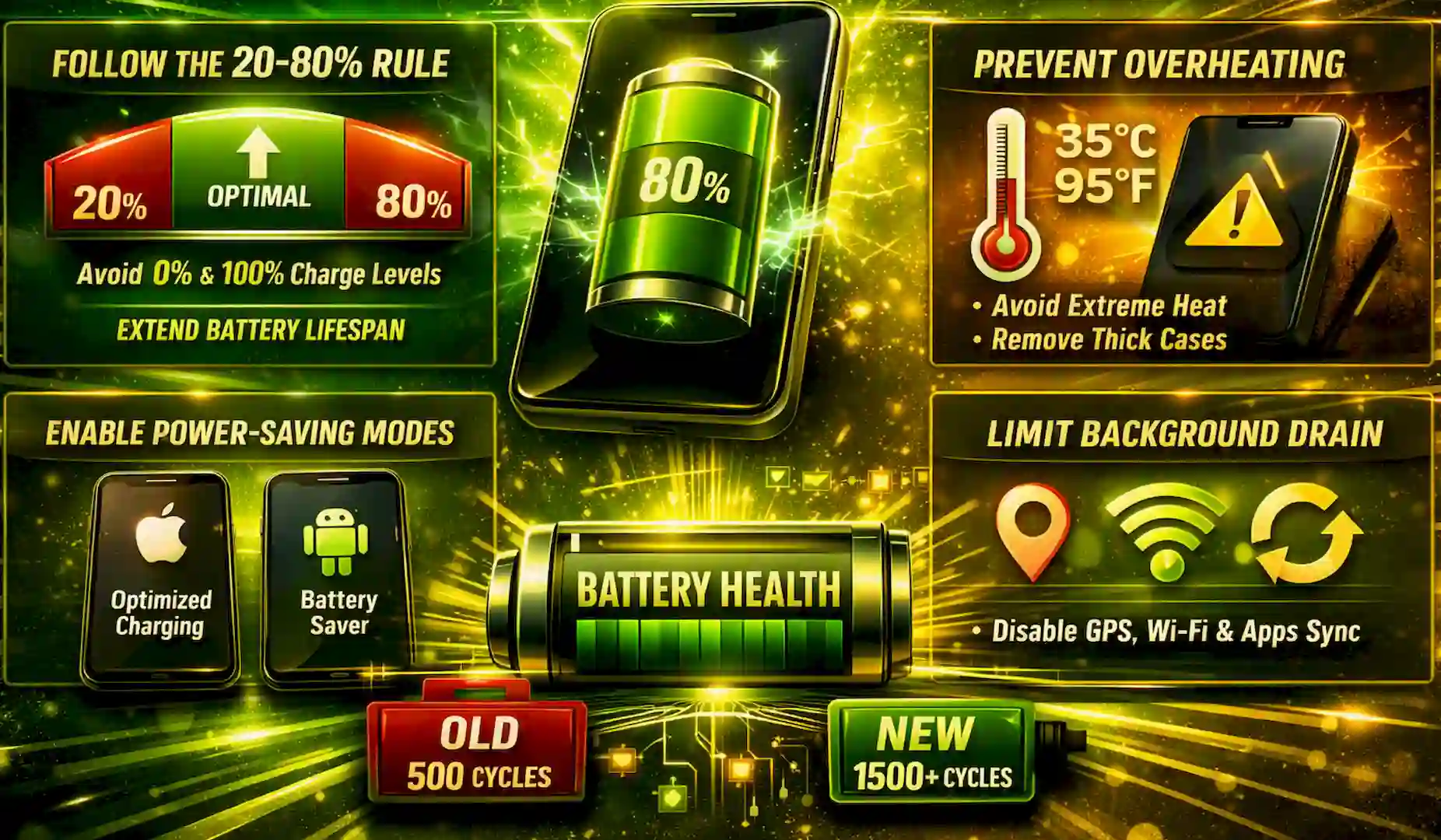
By adhering to the 20–80% rule, you prevent your power cell from spending extended periods in extreme voltage states. Plugging in your phone once it hits around 20% and disconnecting it around 80% drastically reduces stress on the battery chemistry. Real-world testing and industrial battery studies show that maintaining this sweet spot can double or even triple the total charge cycle lifespan of a standard mobile battery—extending its usable longevity from roughly 500 cycles to well over 1,500 cycles.
Manage Thermal Exposure and Avoid Extreme Heat
Operating or charging your smartphone in high ambient temperatures, specifically anything above 35°C (95°F), drastically speeds up the internal chemical decay of the battery cell. High thermal levels accelerate the breakdown of liquid electrolytes and force the formation of a thicker Solid Electrolyte Interphase (SEI) layer on the anode. This thick SEI layer permanently traps free lithium ions, permanently reducing the total maximum energy capacity your phone can hold. To effectively protect your smartphone from heat damage, keep these operational habits in mind:
(a) Remove Heavy Protective Cases While Charging: Thick, rubberized, or multi-layered protective cases trap thermal energy emitted during the charging process. If your phone feels hot to the touch while plugged in, remove the case to allow ambient air to cool the chassis.
(b) Avoid High-Demand Usage During Fast-Charging: Playing graphics-intensive 3D games, streaming high-definition video, or running GPS navigation while connected to a fast charger creates two heavy heat sources simultaneously: one from the System-on-Chip (SoC) and one from the power delivery circuitry.
(c) Keep Devices Out of Direct Sunlight; never leave your smartphone on a car dashboard, near a sunny window, or sitting exposed outdoors on hot summer days. Direct heat exposure combined with passive thermal buildup can damage a power cell within hours.
Utilize Native Operating System Power Protections
Modern mobile operating systems, including Apple’s iOS and Google’s Android (along with OEM skins like Samsung One UI, Xiaomi HyperOS, and Google Pixel UI), feature sophisticated, built-in battery management engines designed to automate cell protection iOS Battery Protection Tools. Apple devices include Optimized Battery Charging, which uses machine learning to understand your daily charging routines. If you plug your iPhone in overnight, the device charges to 80%, pauses, and then finishes the remaining 20% right before you typically wake up.
Newer models also offer an explicit 80% Limit setting, which halts power intake at 80% regardless of how long the device remains connected to the charger. Android manufacturers provide similar native safeguards. Under the system battery settings, features like Protect Battery, Adaptive Charging, or Battery Protection allow users to cap the maximum charge limit to 80% or 85%. Turning these options on ensures that overnight power connection does not hold the battery at its maximum 100% stress point for hours at a time. Taking a few minutes to navigate into your smartphone’s system preferences to activate these native features removes the need to manually monitor your charging intervals every day.
Optimize Display Settings and Dark Mode Strategy
High-refresh displays running at 120Hz or 144Hz offer ultra-smooth scrolling, but they draw significantly more battery power than standard 60Hz panels. Ensure your display setting is set to Adaptive or Dynamic, which allows the OS to drop the refresh rate down to lower speeds when viewing static images or reading text.
Reduce Screen Timeout: Lower your auto-lock timeout to 30 seconds or 1 minute. Leaving an unattended display lit up needlessly wastes power throughout the day.
Manage Auto-Brightness: Keep automatic brightness enabled so the ambient light sensor lowers display output in dimmer indoor environments instead of running at peak outdoor brightness levels.
Control Background App Refresh and Wireless Connectivity
Audit Background App Activity. Even when your smartphone rests idle in your pocket or on your desk, background processes, background app synchronization, and active wireless radios continuously draw power from the battery. Many mobile applications—particularly social media networks, messaging platforms, shopping apps, and news feeds—frequently wake up the phone processor to fetch new data, load advertisements, or update location tracking.
On iOS: Navigate to Settings > General > Background App Refresh and turn off background privileges for apps that do not require real-time updates.
On Android: Go to Settings > Apps, select resource-heavy applications, and restrict their background battery usage to Restricted or Optimized. Manage Wireless Scanning and Location Services.
Restrict Location Permissions: Persistent GPS tracking causes significant power draw. Audit your location settings and change permissions from “Always Allow” to “Only While Using the App” for all non-essential applications. Disable Persistent Scanning: When you travel through areas with poor or non-existent cellular coverage, mobile radios ramp up power output to maximum capacity searching for signals. Disabling continuous Wi-Fi and Bluetooth background scanning—or switching to Flight Mode in low-coverage zones—prevents rapid drain caused by network searches.
SOME QUESTIONS AND ANSWERS:
Is fast charging harmful to long-term battery health?
Fast charging is generally safe because modern fast chargers operate in multi-phase power delivery. High wattage is supplied during the initial charge stage (from 0% to around 50–80%), after which power output drops dramatically to protect the cell from excessive voltage and thermal buildup. As long as your phone does not become uncomfortably hot during fast-charging sessions, the impact on cell lifespan is minimal.
Should I let my new smartphone drain to 0% before charging it?
No. This is a common myth originating from older Nickel-Cadmium (NiCd) and Nickel-Metal Hydride (NiMH) battery technologies, which suffered from memory effects. Modern Lithium-Ion batteries do not have a memory effect, and deep discharging a new smartphone down to 0% causes unnecessary electrochemical stress.
How do I accurately monitor my battery health status?
On iOS devices, check Settings > Battery > Battery Health & Charging to view your current Maximum Capacity percentage relative to when the phone was new. On Android, navigate to Settings > Battery, or use dedicated diagnostic tool to measure capacity loss and battery wear over multiple charging cycles
Taking care of your smartphone battery doesn’t require drastic lifestyle changes. By keeping your device within the 20–80% charge sweet spot, protecting it from extreme heat, and taking advantage of your phone’s built-in power management tools, you can ensure your device stays fast and reliable for years to come.
Thank you for reading! If you found this guide helpful, be sure to bookmark SARITSYSTECH and return regularly for the latest tech news, hardware troubleshooting guides, and practical mobile tips.