
HOW TO CREATE A BOOTABLE WINDOWS TO GO [WTG] USB DRIVE WITH RUFUS
Category: Tech Insights & Infrastructure | Reading time: ~10 minutes | Level: All users
RUNNING A PORTABLE OPERATING SYSTEM ANYWHERE
This step‑by‑step guide shows you how to configure Rufus to deploy Windows 11 as a live operating system, bypassing TPM and Secure Boot restrictions, and optimizing your portable profile for speed, privacy, and security.
Windows To Go [WTG] is a powerful feature that allows users to boot and run a complete, live version of Windows 11 directly from an external storage device. Unlike a standard installation USB which only contains setup files, a WTG drive functions exactly like a portable computer in your pocket, complete with its own registry, file systems, and installed programs.
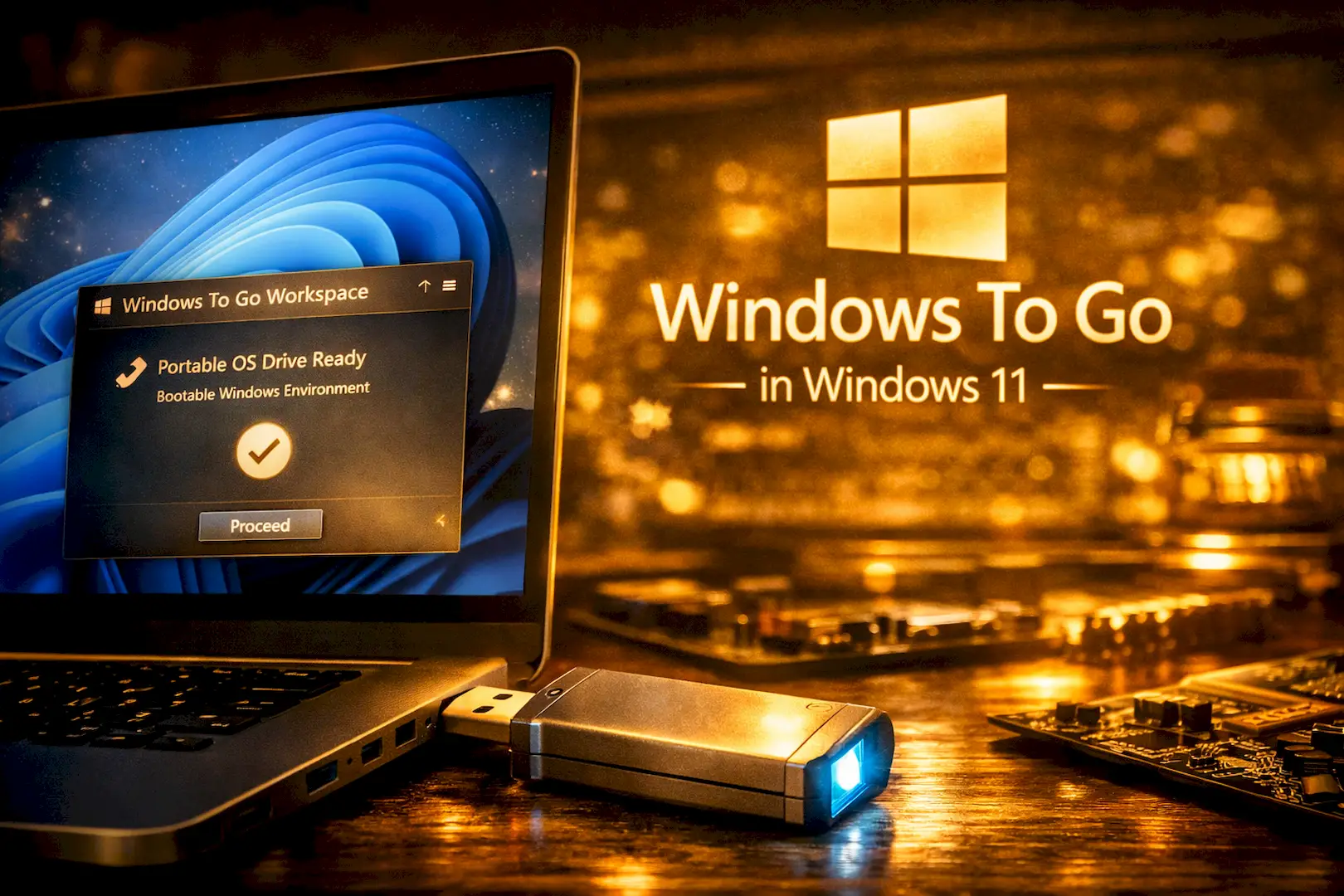
While Microsoft officially deprecated this tool for enterprise users, Rufus keeps the feature alive and optimized for everyone. By the end of this guide, you will know how to configure your external drive to carry a secure, lightning-fast operating system environment anywhere you go.
Here is what we will cover:
- SELECT HIGH-SPEED EXTERNAL DRIVE: Choosing premium hardware to prevent system lag
- CONFIGURE RUFUS FOR WTG: Switching settings from standard installer to live OS deployment
- OPTIMIZE PORTABLE PROFILE: Hardening security and stripping out telemetry tracking
- FLASH AND BOOT SETUP: Writing the image blocks and configuring target system BIOS
1. SELECT HIGH-SPEED EXTERNAL DRIVE
CRITICAL HARDWARE REQUIREMENTS
Running a live operating system places heavy read and write demands on your storage hardware. WTG requires exceptionally fast random read and write speeds to manage continuous system processes without lagging, freezing, or throwing device driver crashes.
- AVOID GENERIC USB 2.0 OR CHEAP USB 3.0 DRIVES: Standard memory sticks lack the memory controllers needed for active computing workflows and will make the OS unusable.
- USE CERTIFIED WINDOWS TO GO FLASH DRIVES OR USB 3.2 NVME SSDS: Opt for solid-state storage architecture to match internal drive processing speeds.
- ENSURE AT LEAST 32GB CAPACITY: A minimum baseline of 32GB is mandatory to house the system files, though a margin of 64GB or more is highly recommended for apps and personal user data files.
- MOUNT ENTIRELY OFFICIALLY SIGNED IMAGES: Always store an authentic multi-edition Windows 11 ISO file on your desktop
2. CONFIGURE RUFUS FOR WTG
SWITCH RUFUS FROM STANDARD INSTALLER MODE TO WINDOWS TO GO
Once your premium hardware infrastructure is connected, fire up the Rufus platform as an Administrator. This phase alters the software parameters, changing the tool from a standard installation environment into a live workspace deployment machine.
- OPEN RUFUS AND ACCES THE INTERFACE: Launch the tool framework and ensure your external storage media device maps perfectly to the workspace layout.
- CONFIRM TARGET MEDIA MATCHES YOUR EXTERNAL SSD: Verify the drive selection menu identifies your fast external disk rather than your daily local system storage banks.
- MOUNT OFFICIAL WINDOWS 11 ISO FILE SECTORS: Click the selector tool to parse your local operating system directories and load the downloaded image package.
- CHANGE IMAGE OPTION FROM STANDARD WINDOWS INSTALLATION TO WINDOWS TO GO: This is very important. Swap this crucial core option to tell Rufus to deploy a fully usable, bootable operating environment instead of a fresh setup configuration.
- SET PARTITION SCHEME TO GPT AND TARGET SYSTEM TO UEFI: Align your partition layout parameters to modern standard configurations so the external deployment system executes correctly across updated computer motherboard firmware.
3. OPTIMIZE PORTABLE PROFILE
TUNE RUFUS OPTIONS TO ISOLATE AND HARDEN YOUR PORTABLE OS
Immediately after triggering your deployment sequence, an advanced customization overlay will appear on your screen. Tuning these target options hardens your environment and insulates your portable drive from security bugs on whatever computer you borrow.
- CHOOSE WINDOWS EDITION PRO OR HOME: Pick the exact operating system layout that aligns with your software environment goals or digital entitlement licenses.
- CHECK OPTION TO PREVENT INTERNAL DISK ACCESS: Lock down the portable workspace so it cannot mount or scan the host computer’s built-in storage banks, keeping your activity completely isolated.
- LEAVE BYPASS OPTIONS ENABLED FOR TPM AND SECURE BOOT: Keep the pre-configured parameters active to ensure your custom portable drive launches effortlessly on legacy systems or unsupported hardware setups.
- DISABLE PRIVACY PROMPTS LOCATION TRACKING DIAGNOSTICS ONLINE ACCOUNT: Suppress mandatory Microsoft profile linkages and data logging triggers to establish a clean, dark desktop layout right out of the box.

4. FLASH AND BOOT SETUP
FINAL STEP OF CONFIGURATION
With all operational guidelines defined, you can now write the data blocks to your solid-state hardware storage. Once the data matrix writes completely, you must instruct the target computer’s motherboard architecture to run your new portable partition.
- CLICK START AND CONFIRM DATA LOSS WARNING: Execute the flashing script and accept the system partition override notice to clear the storage blocks cleanly.
- WAIT UNTIL PROGRESS BAR TURNS GREEN WITH READY STATUS: Monitor the tool dashboard closely and do not break the physical USB connection line while files compile.
- PLUG DRIVE INTO TARGET PC AND RESTART: Connect your fast portable system drive to an available high-speed port and cycle the computer’s power grid.
- ENTER BIOS OR BOOT MENU F12 F2 DEL: Tap your system’s designated firmware trigger key instantly as the display panel activates to enter the motherboard boot priorities.
- SELECT EXTERNAL USB SSD AS BOOT PRIORITY: Move your external storage option to the top tier of the boot hardware arrangement list and press your save execution key.
- LET WINDOWS TO GO RUN INITIAL PROFILE SETUP: Allow the system to map parameters, detect local peripheral drivers, and deploy your custom desktop layout on the host screen.
Carry Windows 11 Wherever You Go From Now!
You’ve now learned how to create a fully functional Windows To Go (WTG) USB drive with Rufus, transforming any high‑speed Flash Drive or external SSD into a portable Windows 11 workspace. This setup lets you boot your personalized operating system on any PC — complete with your apps, files, and settings — without touching the host machine.
By following these steps, you’ve built a secure, lightning‑fast environment that travels with you, ideal for technicians, developers, and digital nomads who need Windows 11 on the move.
Next Read: Explore our earlier guide — How to Create a Bootable Windows 11 USB with Rufus [Step‑by‑Step Guide] — to master the standard installation method and understand how Rufus powers both portable and setup‑based deployments.
For more tech tutorials, system optimization insights, and advanced Windows configuration guides, keep visiting Sarit Systech — your trusted source for premium technology knowledge.
Thanks bro for this amazing help here
You are welcome brother and it is my pleasure to share the knowledge.
Thanks for the info. please write about How to make phone recording with in built recorder.
Thanks!